
Getting Started

STARTING STOPECALCTM
Start STOPECALCTM by navigating to www.stopecalc.com where you will see the landing page :
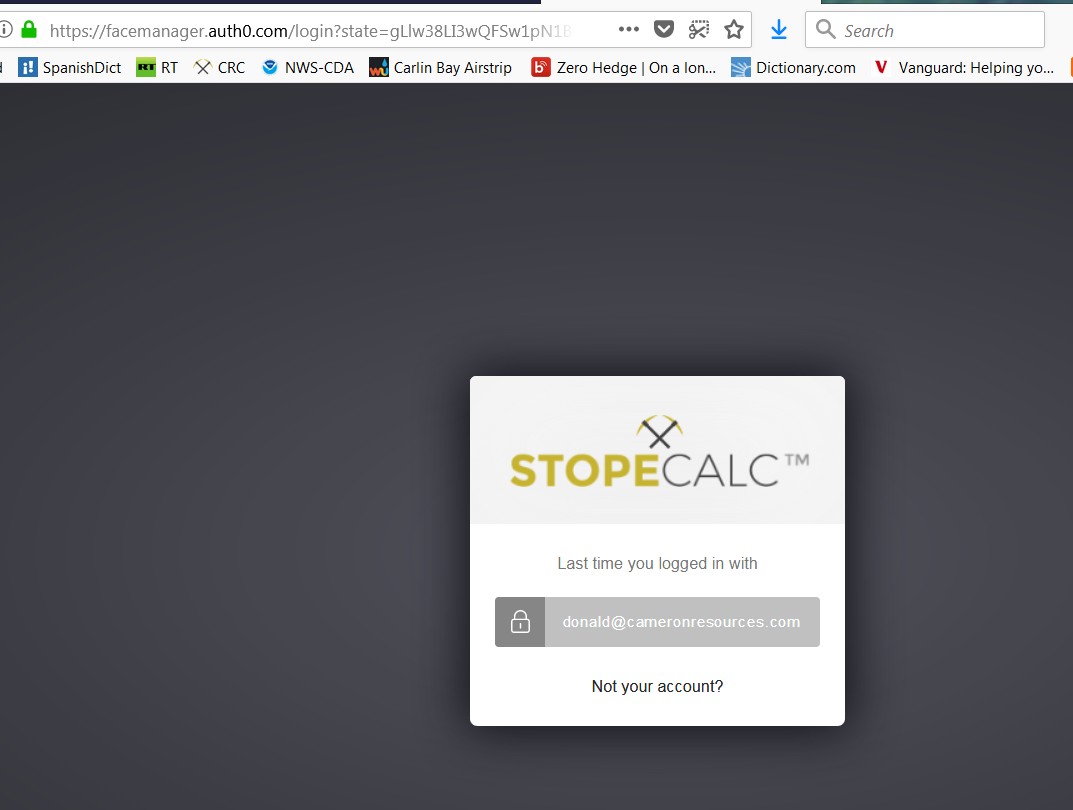
By clicking on 'Let's Go', the user is taken to the login page where the user's enters the user account email:
Successful login brings up the Project selection page, or you may be first directed to the Profile page where you will enter your Username and Password.
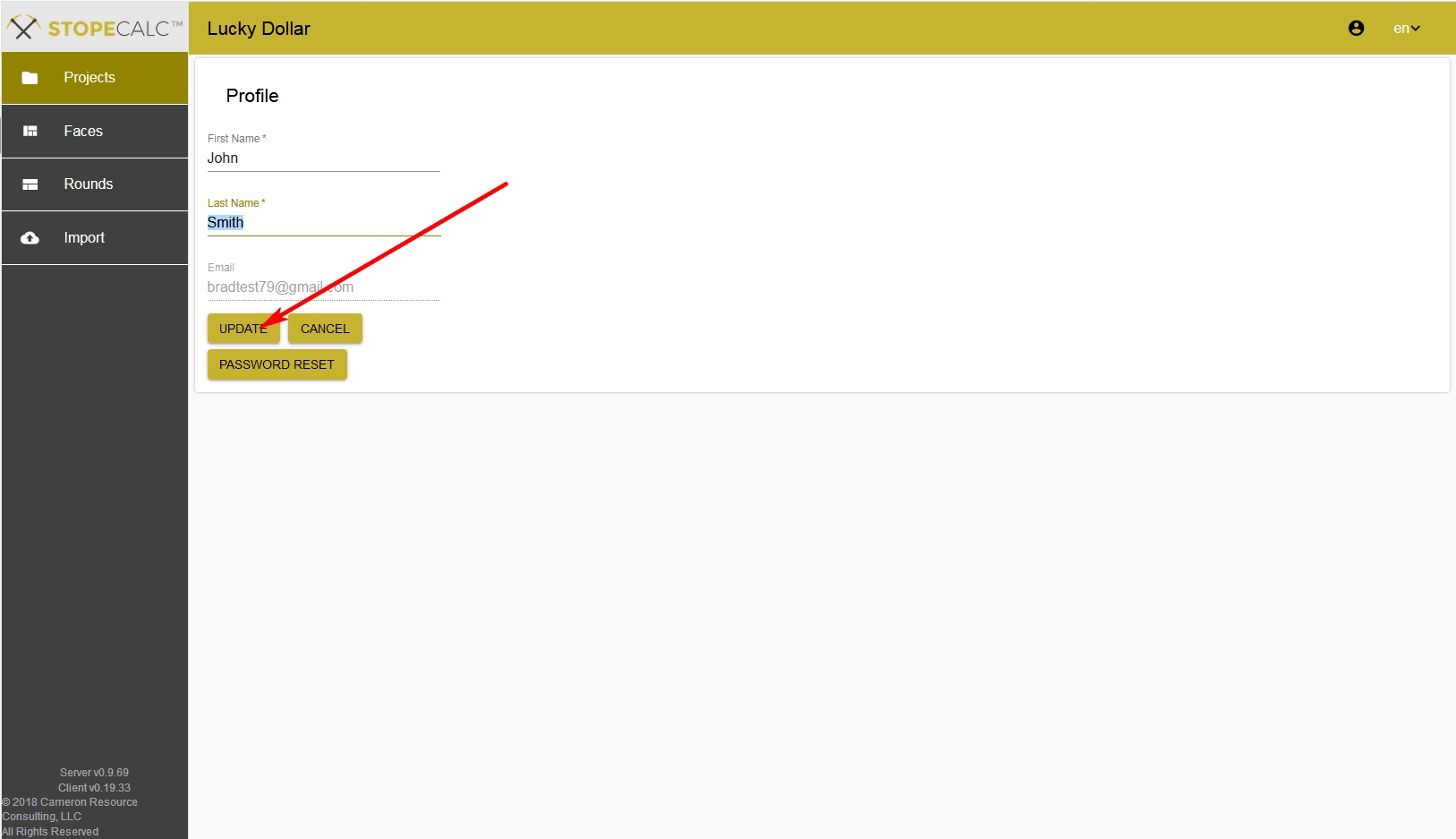
After making any changes such as the user or a password reset and/or selecting a regional preference, by clicking update, the user is directed to the Project page.
Once at the Project page, you can always access the Profile page from anywhere in the STOPECALCTM by selecting the Profile option at the upper right corner of the current page.
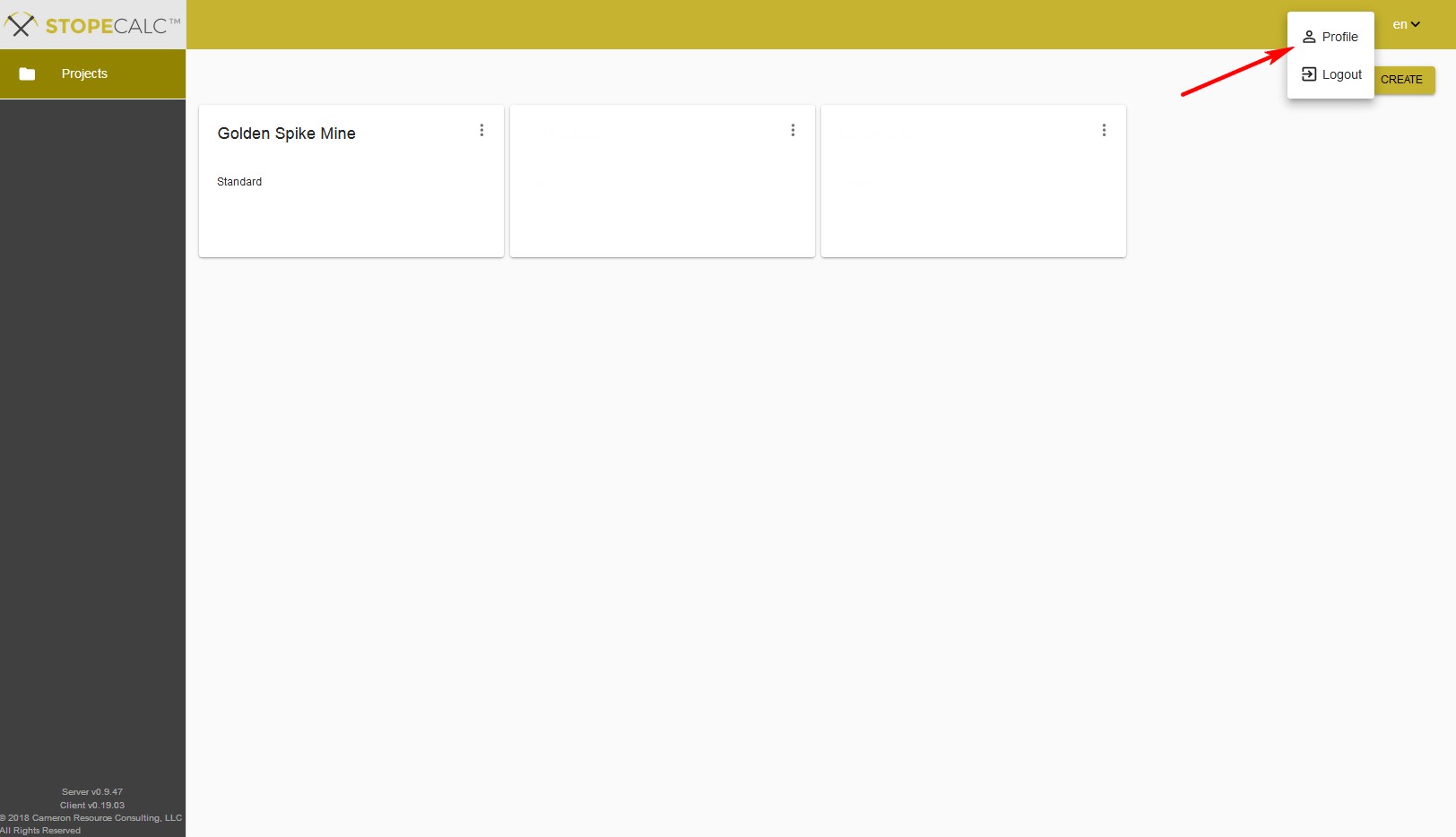
A complete discussion on creating and managing projects is available in Projects. If a project has already been created, and once the user selects a Project from the Project page, other options will appear on the sidebar, Faces, Rounds and Import:
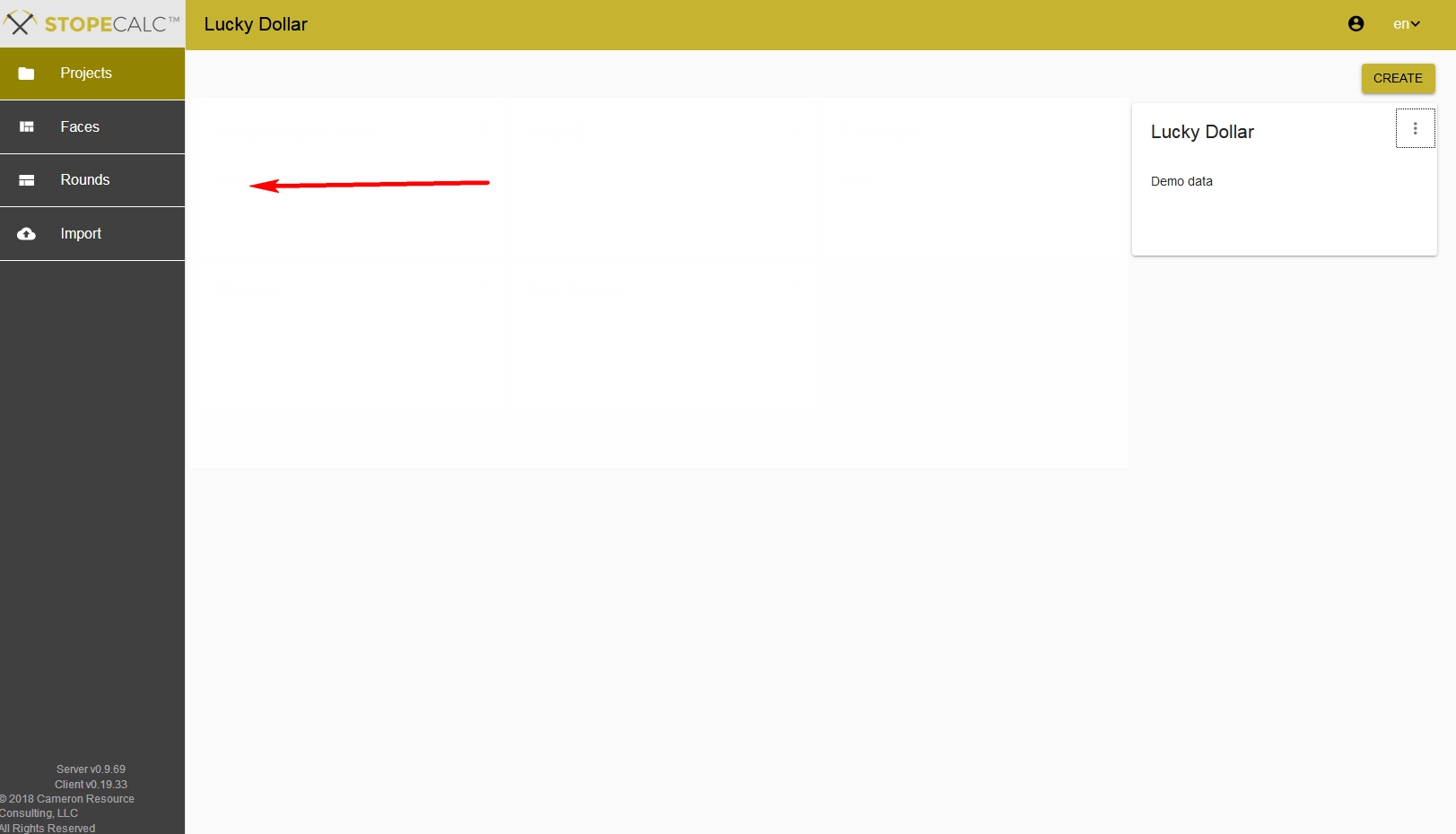
The program components are listed in the sidebar on every page and can be accessed directly. The active one is always highlighted.
STOPECALCTM will time out for security purposes after two hours. Remember to save your work before pausing, and just refresh your browser to log in again to the program when you return. The previous project will remain selected.
Follow this general workflow for populating, managing and reporting your production data:
PROJECTS
Create your first project by navigating to the Projects tab. Create, or migrate your mapping system codes, bulk density values and metals lists here so that further data entry and importing will meet project standards.
FACES
Next, go to the Faces tab and create your first face with a unique name, filling in the required fields in the with actual or estimated data (e.g., approximate coordinates to be replaced later by survey).
Add sample intervals and geologic codes in the Intervals section.
Upload a photo or map of the face to the form so that it can be viewed while you work.
Save your changes and Calculate to see Results
Optionally, export your data to validate the results graphically in a mine visualization package and by running reports.
Print out or save a pdf report of the Face.
Create a full report to bring the Round metadata and results into csv format.
ROUNDS
Navigate to the Rounds tab in order to see the results for each mined round. Create a new round, add some metadata to describe it in the fields on the form, and supply the Face ID's for the two bounding faces.
Save your data and Calculate.
Validate the results graphically in mine visualization software package.
Print out or save a pdf report of the Round.
Create a full report to bring the Round metadata and results into csv format and see totals and averages. This may be done regularly for weekly/monthly/yearly reports.
VOLUME RECONCILIATION
If detailed survey volumes are available, it is advisable to reconcile face and round report outputs with the surveyed volumes. The user should determine whether any extra surveyed volume is real overbreak dilution or represents unaccounted waste from later clean-up or ground failures. Systematic volume discrepancies can occur if the working height is not measured by geologists from the actual or estimated hard bottom, the working profile significantly deviates from a quadrilateral, the measured or actual face width does not reflect the final mining width, or problems with engineering survey measurements or timing relative to the mucking cycle and floor leveling. Each heading or stope should be assessed on a case-by-case basis rather than applying global adjustments.
Overbreak should be assessed face-by-face by comparing the rib survey to the sampled face widths. Even though it is generally recommended to override the automatic calculation of face width that uses the sample intervals by inserting a separate overall measurement taken ~50cm back from the face, drifts and stopes may bell-out on subsequent blasts due to overbreak or further scaling of blast-damaged ribs. If there is a discrepancy between the rib survey and the face length, the face width entered in STOPECALCTM should be adjusted accordingly to account for the extra overbreak dilution. In this case, no grade and waste density will be attributed to the unsampled volume.
IMPORT/EXPORT
Navigate to the Import item on the sidebar and get a fast start on your STOPECALCTM database by importing csv listings of header and interval information. As long as the required fields are present and match the database field names, STOPECALCTM will auto-populate the field names, ready for import. When imported, the data are ready for validating, editing and calculating. The Rounds database can also populate by importing a listing of development rounds.
Exporting data allows you to dump your entire Face and Round databases to individual Header, Interval, Photo (name-only) and Round csv-format files. This can provide a local backup if desired, or it can be a way to populate a new project from a subset of data. The files can be opened for immediate viewing in EXCEL, or saved on disk. The user can re-import these files using the import menu.
DATA TYPES
STOPECALCTM recognizes and utilizes four different data types:
String
Boolean (Y,N or True/False)
Numbers -- precision information required for metals
Lists or Options
Filtering on string fields in not case-sensitive in STOPECALCTM.