
Projects

CREATING A NEW PROJECT
A Project comprises a group of faces and rounds that share similar location or access, price and recovery parameters and metal suites, and that are likely to be tracked and reported together. For example, sill development might compose one project and cut-and-fill stopes another. Or two sections of a mine complex with distinctly different characteristics and parameters could be separate projects.
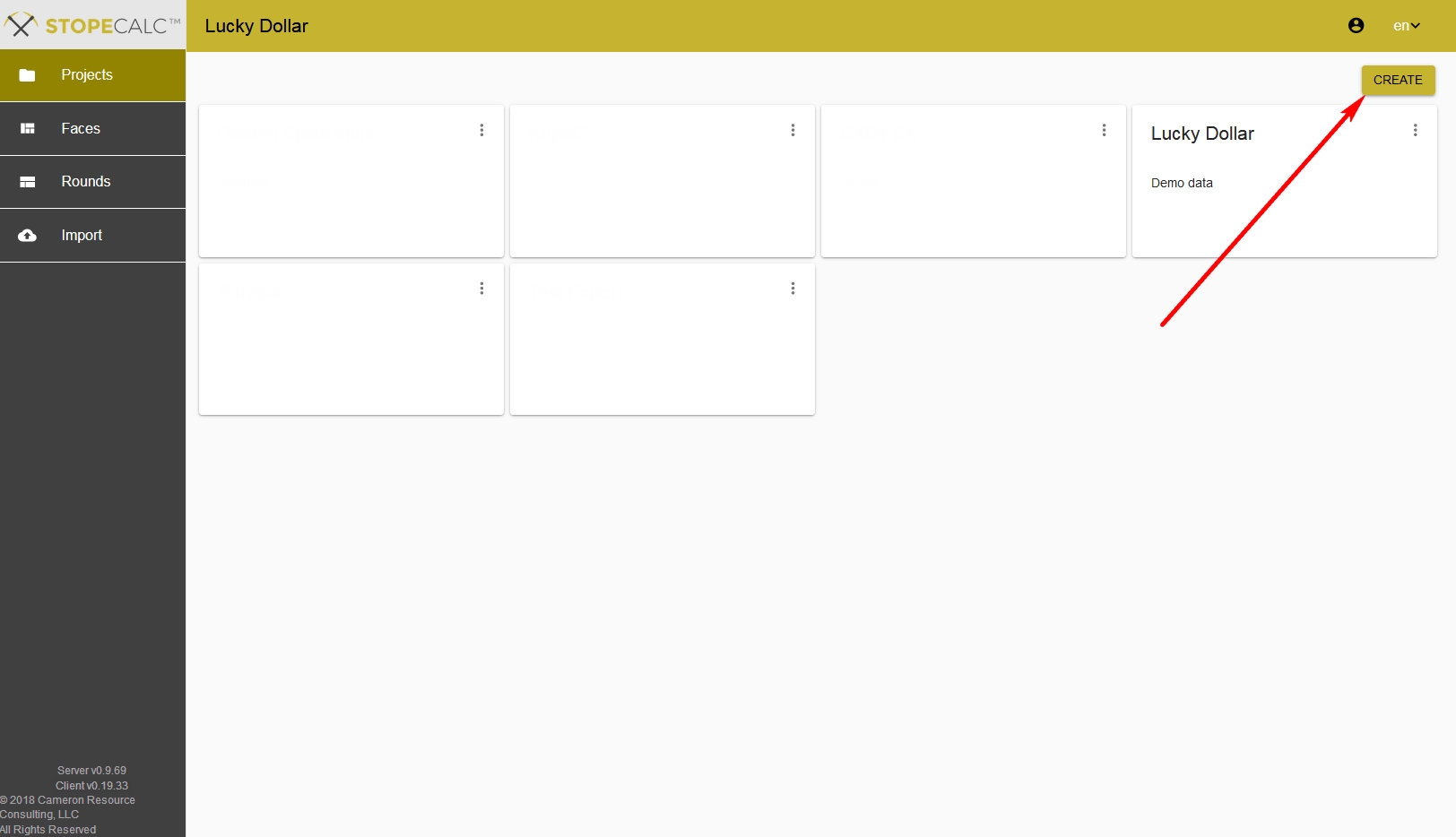
Once logged in you can create a new project by clicking on PROJECTS on the sidebar and CREATE on the project page, as indicated in the view below:
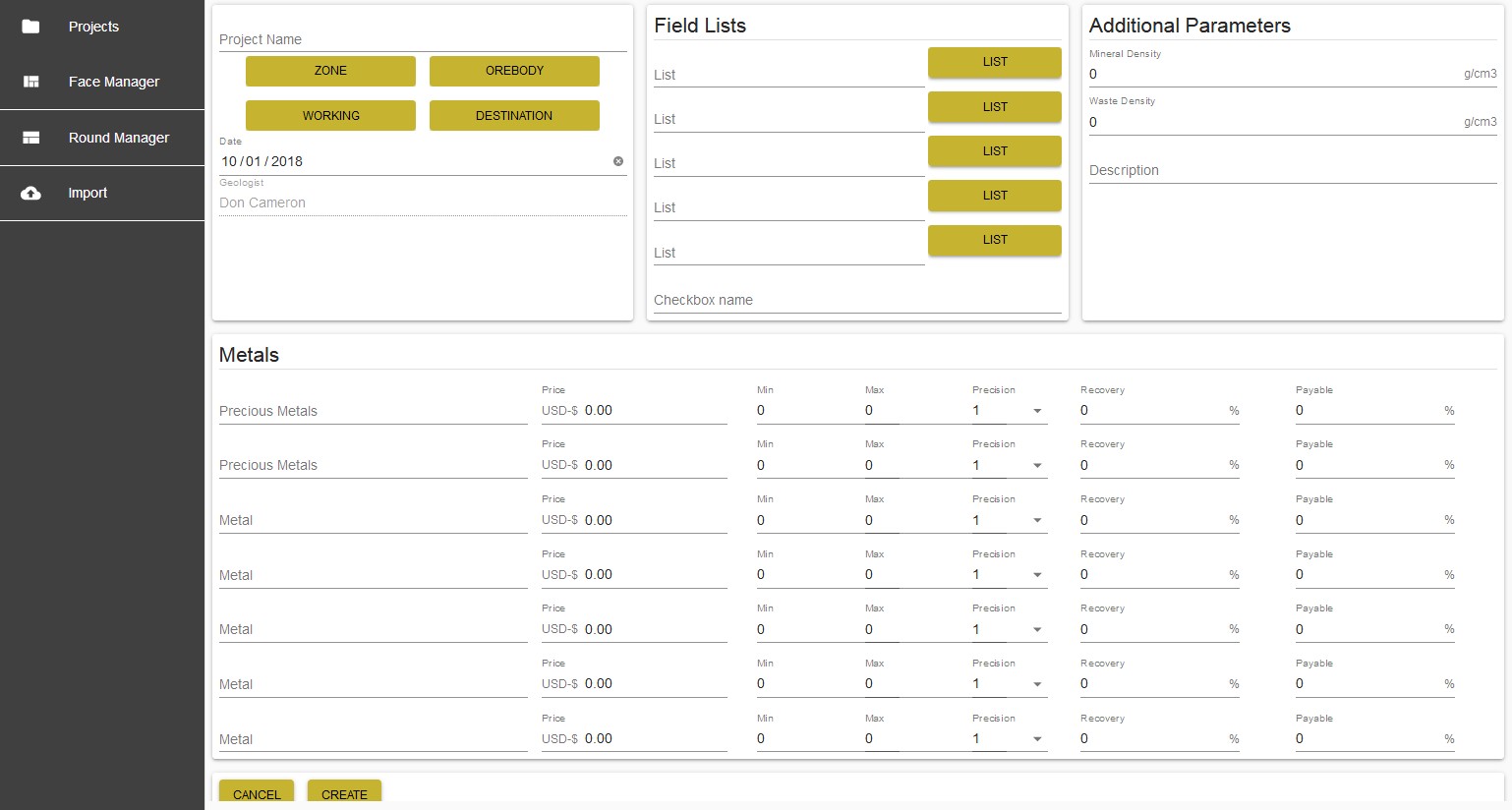
The user is directed to the Project setup page to establish defaults and standards for data entry and calculations performed by STOPECALCTM.
First, name the project in the Project Name line, as in the Golden Spike Mine example below:
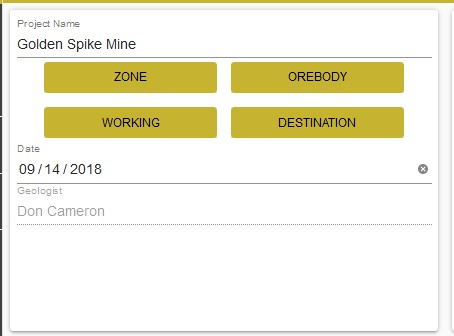
Project Name and Location Lists
The four golden boxes must also be selected one at a time to establish lists of Zones, Orebodies, Workings, and round Destinations. Zones may be separate working areas of a large mining complex. Workings are names assigned to individual developments. Orebodies may comprise a list of veins or ore lenses that are mined separately. Upon selection, a dialog will open as in the example below:
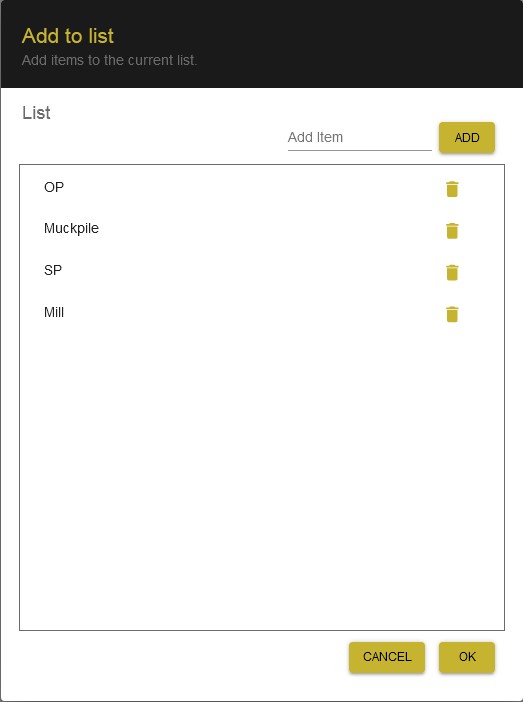
Type in the Add Item line and click on the ADD button to add an item to a list. These will be allowable entries or imports to STOPECALCTM. An attempt to import codes not in the lists will generate an import error message.
Field Lists
Up to five (5) field lists for geological codes and one checkbox can be established:
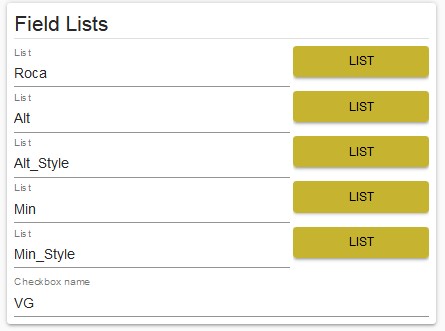
Enter a name for the optional checklists created. All the lists are optional.
Additional Parameters
A parameter list is provided for default bulk densities. Options are available for a bulk density for the economic material (Mineral, or ore) and waste materials.
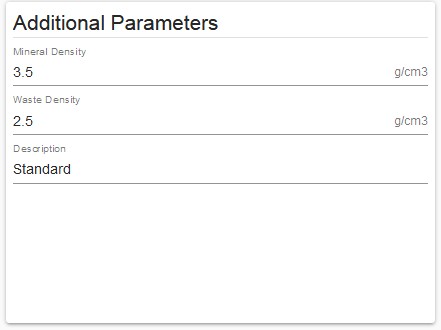
If a single value is to be used, the same values should be entered for both Mineral and Waste. Users can store and apply custom density values for each sample associated with a face. If no density values are associated with a sample; i.e., density is blank, the defaults that you have specified will be applied based on the Econ Zone flag value.
Metals
STOPECALCTM allows calculations for two (2) precious metals in units of ppm (g/T) and up to five(5) percent metal items.
The user must input precious metals prices per troy ounce and per tonne for percent metals.
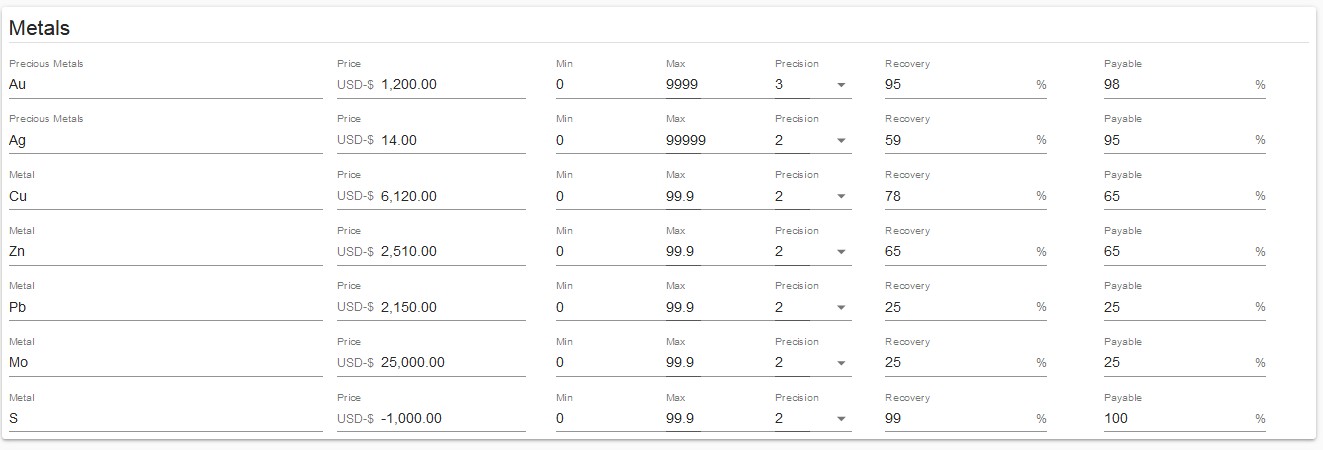
Metal ranges in the item units are required to properly validate any entries or imports. These are minimum and maximum values. Percent items can't exceed 100%
Precision past the decimal point can also be modified from inserted default values.
Plant recovery and product payables are also inserted. For non-pay elements, pay may be set to zero.
For deleterious elements, prices are entered with a negative value. Payables must be set to a positive percentage.
If required fields are empty or out-of-ranges allowed by STOPECALCTM, they will be highlighted in red. Creation of the project cannot be completed until the items are completed or corrected.
NOTE: Be sure to plan the project setup in the creation step carefully to ensure consistency between different site programs and project objectives.
Imperial Projects
STOPECALCTM is principally designed for grade calculations using metric precious metal units such as grams per metric tonne or ppm. If project grades are in the Imperial measurement system; e.g. troy ounces/short ton (opt), the equivalency calculation feature of the app will not function without some minor adjustments.
In order to get correct results for equivalency, a field should be created in the user's database and import file that converts values reported in troy ounces/short ton to ppm. The conversion is done by multiplying troy ounces/short ton x 34.2857. This field(s) will be listed as a Precious Metal field type. The correct recoveries and payables should be applied to the Precious Metals versions of the variables.
Note: In Release 1, the variables should not begin with the same sequence; e.g., ppmAu, the Precious Metal variable, will work with Au as the Percent variable type, but Auppm and Au may not be compatible.
The values of precious metals in ounces/short ton can also be entered as percent metals in order that average grades will be shown in reports with Imperial units. The unit prices entered don't really matter and the recoveries and payables are set to zero to prevent them entering into the equivalency and net value calculations twice.
Bulk densities are input as the inverse of the tonnage factor; e.g., a tonnage factor of 11 is input as 1/11=0.091.
With the above considerations, tonnage, average grade and net value will be correctly calculated.
Errors
Missing required fields are underlined in red. Attempts to save the Project or any Project changes will fail until the highlighted fields are filled in or corrected.
Saving Changes
You must click on the Create or Cancel buttons at the bottom of the page to leave the screen. This will return the user to the Project page.
Project Management
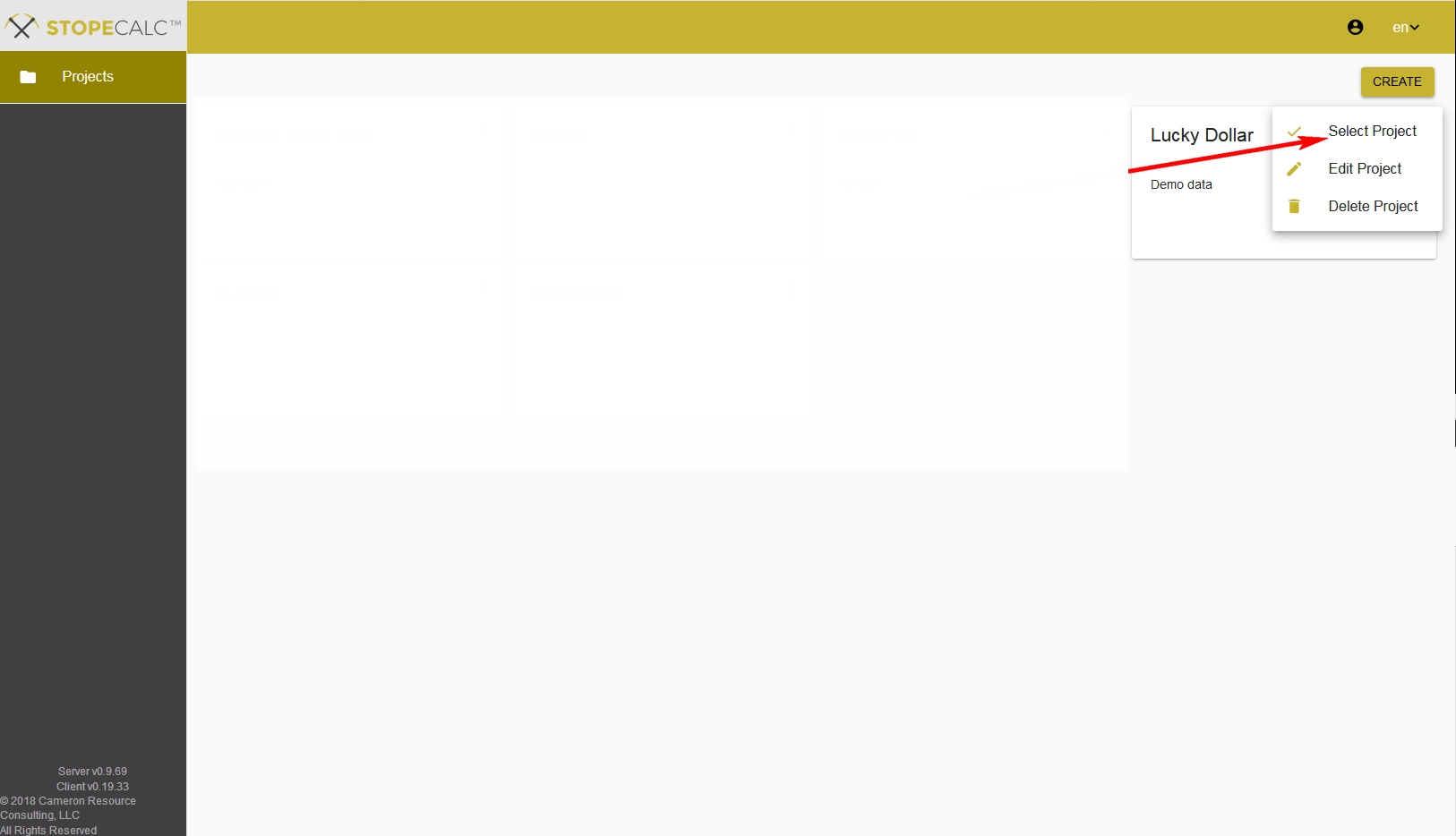
For each project listed on the Project page, there are three choices, to Select, Edit or Delete.
Caution: You will be asked to confirm a project deletion, but there is no undo for Delete.
Select a Project
To select a project click on the radio button (1) which brings up the option to Select or Unselect a Project (2).
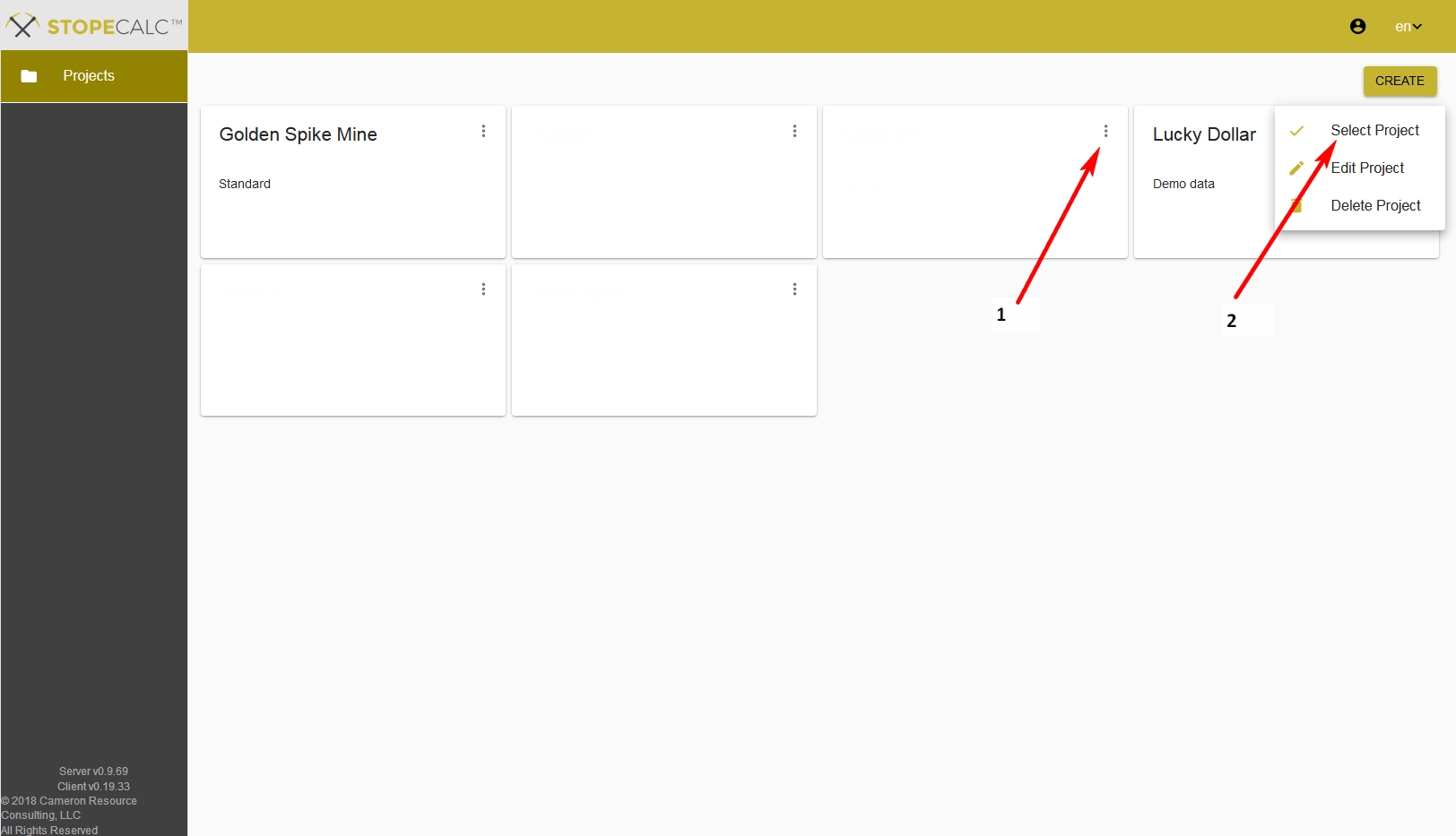
Note: The radio button (1) is beneath the selection menu (2).
Edit a Project
To edit a project follow the steps above, but select Edit Project. The Project screen will open allowing edits of all parameters.
When all changes have been made simply click the Update button at the bottom of the screen which appears in place of the Create button. This will save the changes made to the project. To exit without applying the changes, click the Cancel button. You must either click Update or Cancel to leave the screen.
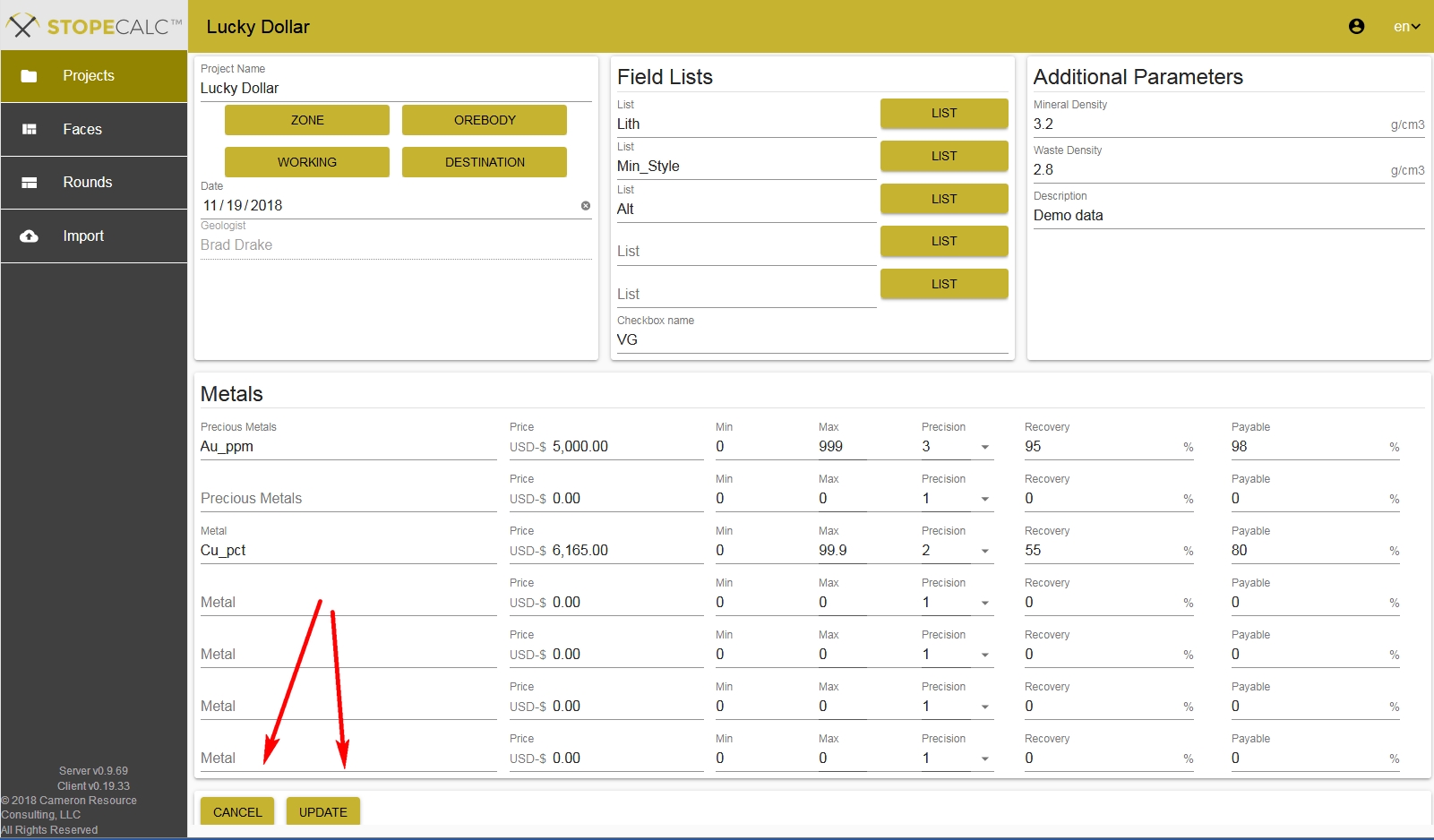
CAUTION: Updates made to an existing project will affect calculations of all faces and rounds that are not marked as Final. Values calculated with previous parameters will be overwritten unless a face or round is Final. If sample codes are changed, pre-existing records may not be consistent with the new codes. You may not be able to use list codes from previous faces that are not included in any new lists or existing list modifications.
Delete a Project
To delete a project follow the steps above, but select Delete Project from the dropdown menu for the project in the Projects screen. The operation will not be possible if the project is open.
CAUTION: There is no warning dialog for Delete Project in this version!
All associated records will be deleted. The project can only be recovered by restoration of a previous backup.
Only Administrators can edit or delete projects.