
Face Quick Views

Quick Overview
Quick View reports are equivalent to a snapshot of the STOPECALCTM Faces view. All of the key Header, Intervals and Results are listed on a landscape-format page for each of the faces selected for viewing. If photos or maps have been uploaded to a face, the default photo is displayed on the view. Quick View reports can be published or sent to a printer. These reports are intended as communication tools for shift turnover, daily reports, or for bringing useful data underground on any portable device. No STOPECALCTM subscription is necessary to view a Quick View-generated report.
Opening a Quick View
To open a Quick View, first Select Faces. Perform any edits or calculations and make sure the changes have updated.
Navigate to the Quick View button and click on it to see a Quick View of all the faces selected. A new tab will open in the open web browser where a File Save dialog will immediately appear. Here, the Quick View can be sent to a printer or published. To view the report only, simply cancel the dialog, allowing paging through the report in the browser tab. Each face will comprise one, or more pages, depending on the number of samples that were collected from it. The default face photo or map will be displayed with each face, as in the example below:
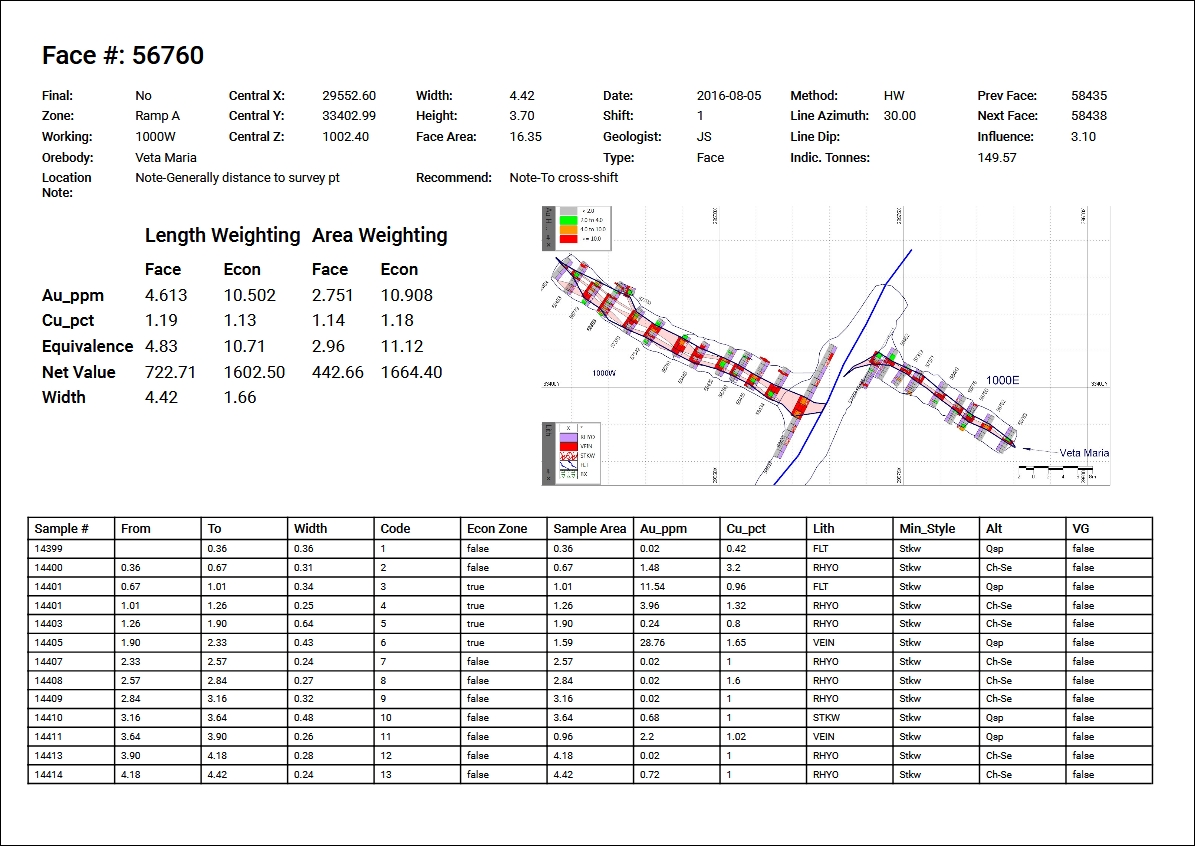
Metal grades, equivalent precious metal grade and net value by both weighting methods, length and area, are shown in the middle section. The header includes an indicated tonnage based on the face area, density, and influence that the face has along strike.
To return to STOPECALCTM just close the Quick View tab or navigate to the STOPECALCTM tab.