
Create a Round

Creating a Round
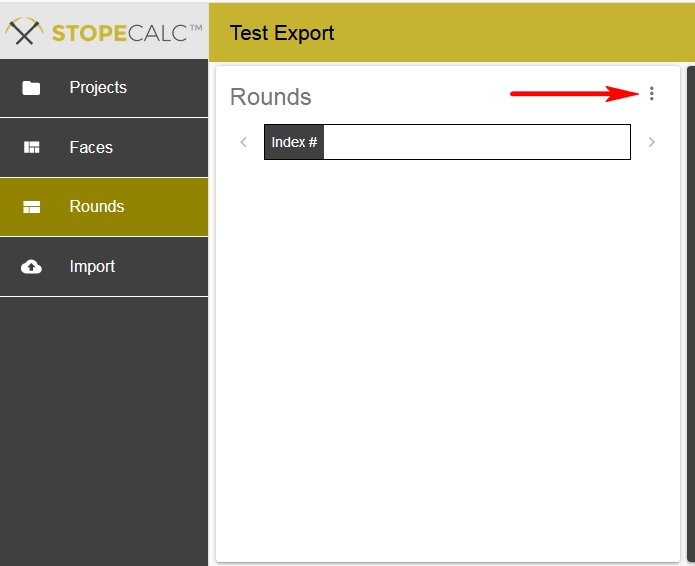
Rounds can be created in by clicking on the radio button opposite the Rounds title in the header block:
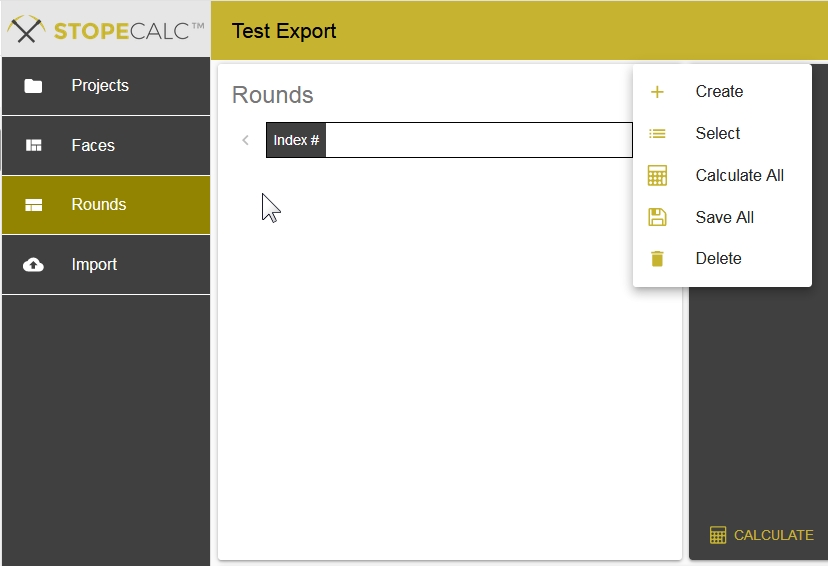
This activates the dropdown menu, from which Create is selected to create a new round:
Enter a unique Round number or string, and fill as many fields as possible in the Rounds section:
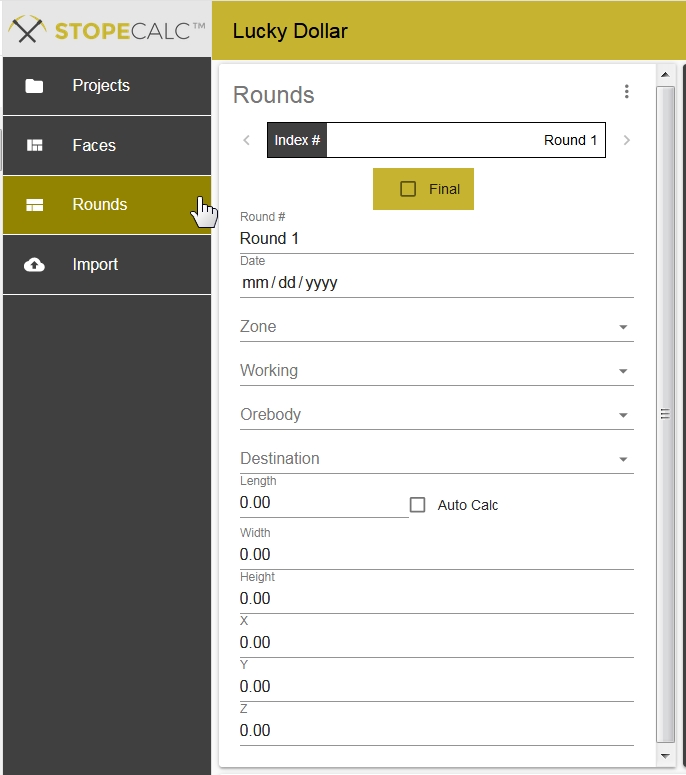
Positioning the cursor in the Date field will invoke a calendar from which a date may be selected. The grayed fields, Zone, Working and Orebody can be selected from dropdown list values specified in Project setup. Length is optional and can be calculated from the bounding faces, preferable if two faces were sampled. Width, Height and X,Y,Z are calculated using the bounding faces.
Bounding Faces
STOPECALCTM uses the dimensions, position, grade and density information from the bounding faces of each end of the round to determine grade and tonnage. The bounding faces are selected from faces loaded and calculated in the database. Make sure that all bounding faces are calculated and saved before calculating rounds. The procedure for selecting the bounding faces is to click on the Select button at the righthand side of the Rounds view:
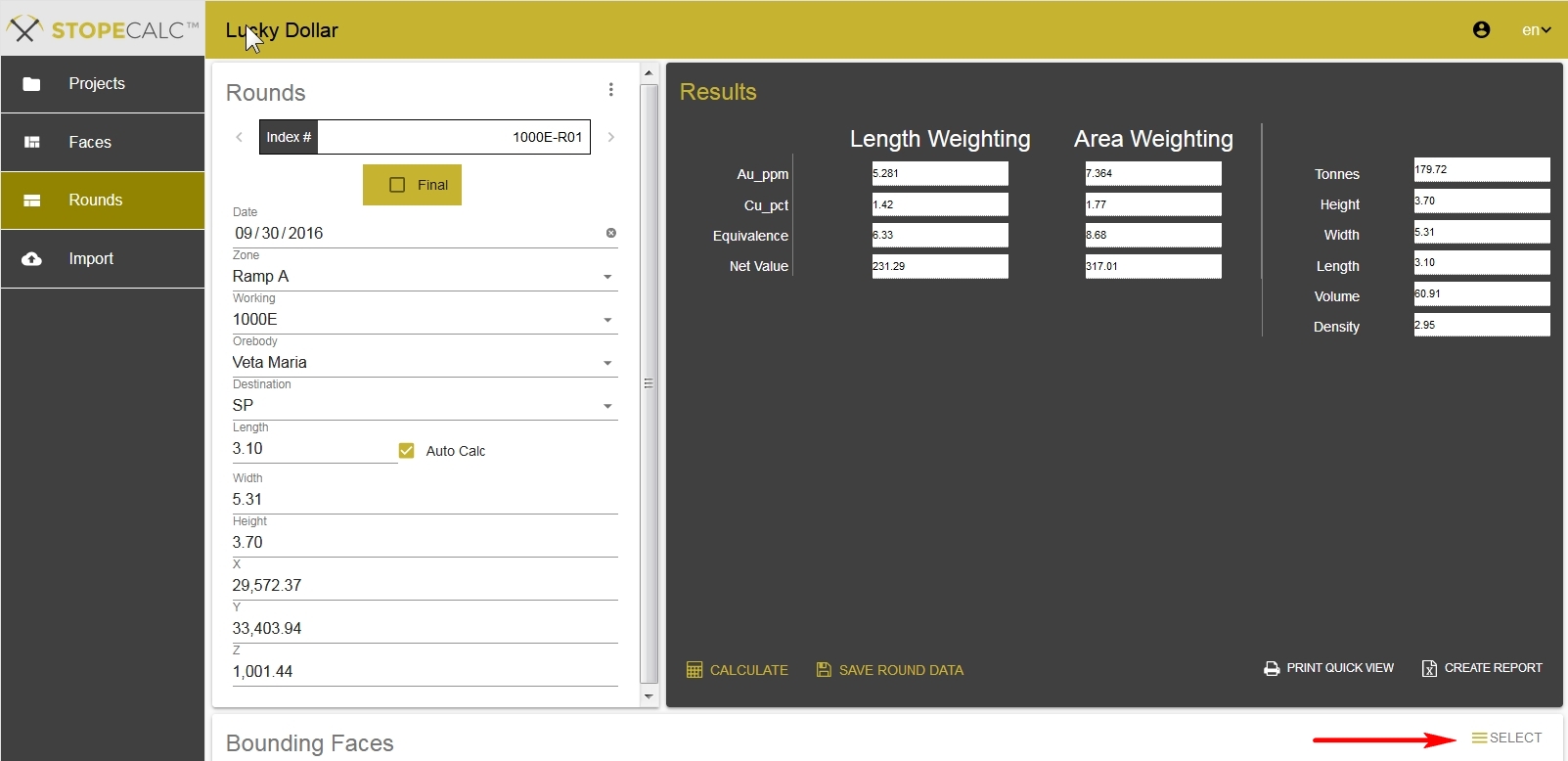
This brings up the filtering dialog to assist in the selection of bounding faces:
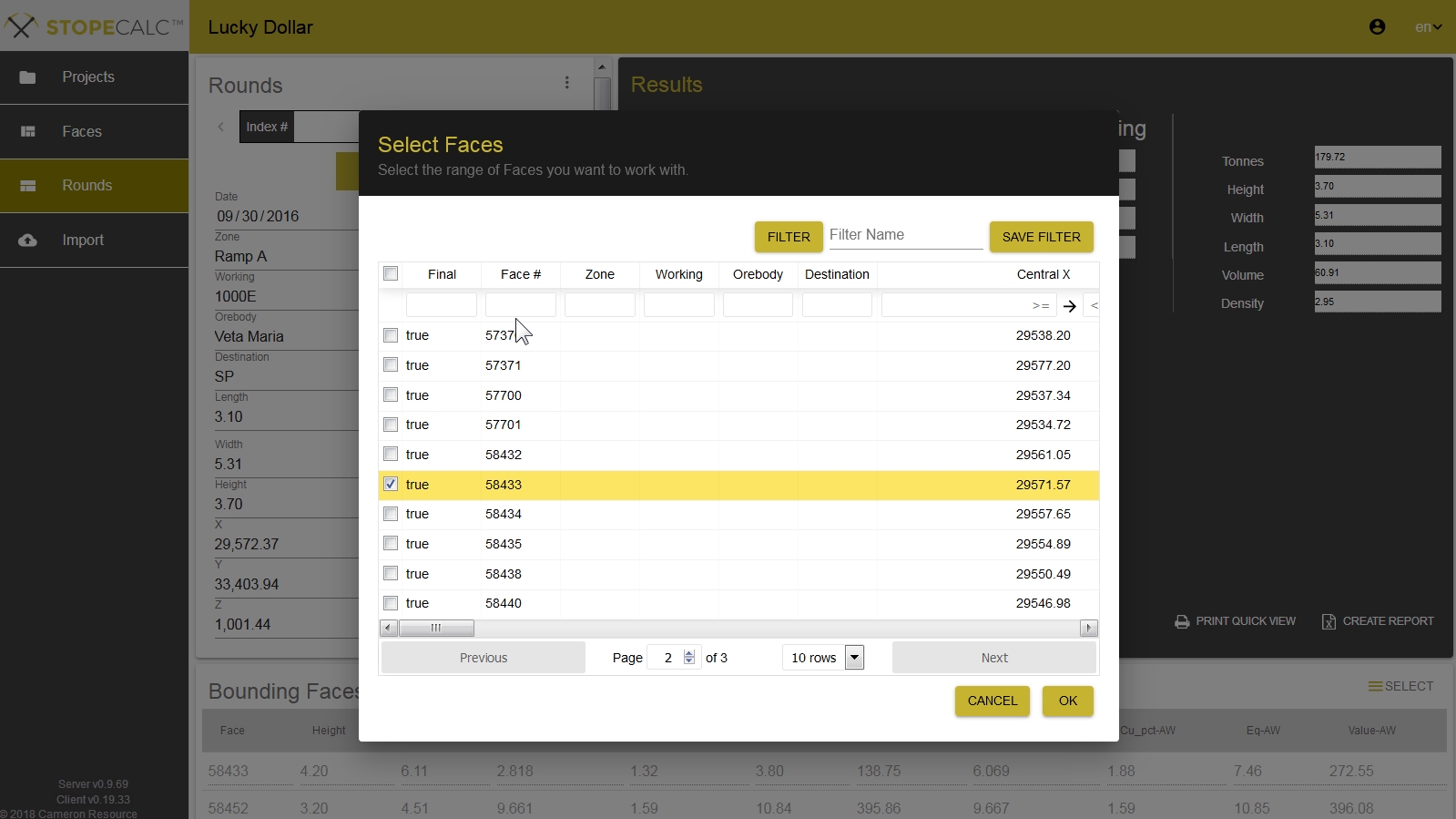
The selected faces and key attributes will be listed in the Bounding Faces section.
Once the Round metadata and bounding faces are selected, information for the Round is complete.
If only one bounding face was sampled, the length of the round should be manually entered and the Auto Calc option unchecked, otherwise Auto Calc using the bounding face central coordinates is generally the best option.
Rounds with One Face
This situation can arise in a number of situations, for which two examples are given. In the Lucky Dollar 1000W drift area below, three rounds are assigned only one face because of incomplete sampling:
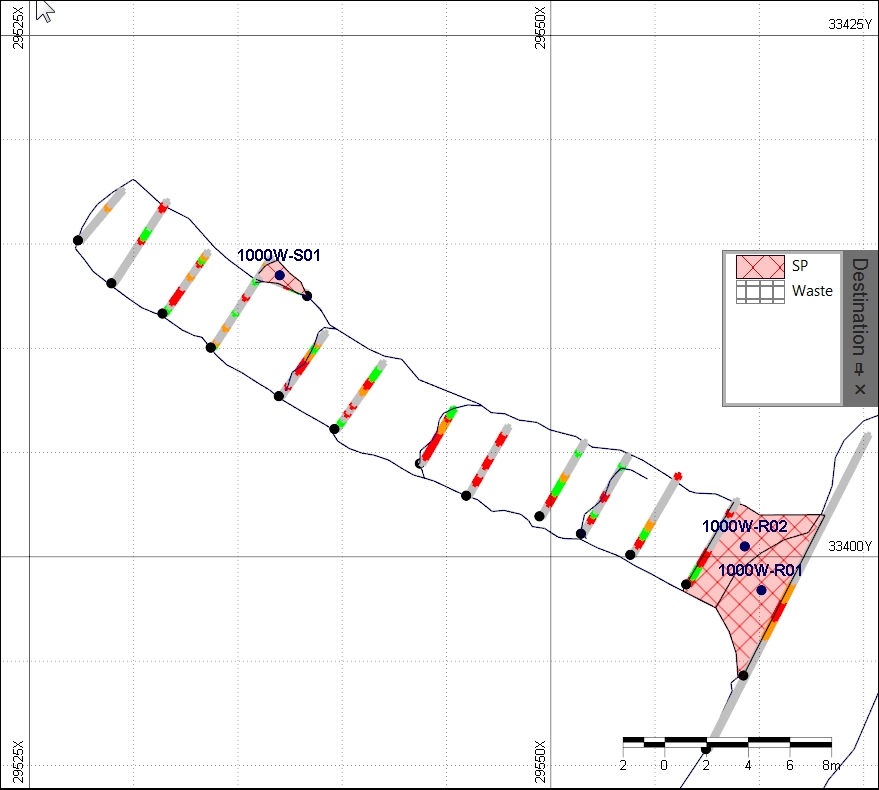
In the case of 1000W-R01 and R02, the face exposed after taking the initial round was not sampled. To handle this situation the information from the rib sampling is extended to the first round. The second face was sampled, and this is extended to the second round calculation. The results may not be as robust as would be obtained by averaging the faces, but the production entities will coincide with the manner in which they were mined and shipped.
The other round with one face is a slab that was taken based on rib sampling. No follow-up sampling was undertaken, and the geometry of the resulting cut was not amenable to representative sampling. One face is assigned to this round.
Where only one face is attributed to a round, the user must supply the X,Y,Z coordinates for the face and manually input a round length that will result in calculations that approximate the volume of the round. The length can be measured on a map or using other mine software. The procedure will follow these steps:
- Auto Calc for length must be turned off.
- The length is entered manually and saved.
- The round is calculated and saved.
- Correct coordinates are entered and saved.
- Final box is checked and saved.
If these steps are followed, the manually entered coordinates will not be overwritten inadvertently. Checking the Final box and saving is the only way to ensure this.