
Importing Faces

Faces are imported in two steps, first the header information, and second, the channel intervals and samples associated to the face. Although the web database is not organized in the same manner as an ACCESS or SQL database, the user will interact with it as if it were so. The number of importable fields is conditioned by the minimum requirements of the database and the number of grade variables specified in the Project setup. With importing, new face records can be created and existing records can be updated.
Import files must be csv-format text files with a variable names in the first row. Certain fields are required in order to establish a valid database, but the minimum field required for Header import is FaceID and descriptive fields corresponding to the dropdown lists in the Header section (e.g., Method,Shift). Header information must be imported and faces created before any interval information can be imported. Imported information must be valid, according to criteria embedded in STOPECALCTM. If a FaceID is already present in the project, the face information is updated by the import
The minimum required fields for imports to the Channel Intervals table are FaceID, Sample #, 'From', 'To', and Economic Zone fields in any import. If both 'From and 'To' are not specified, additional records may be generated upon subsequent imports and calculation errors may occur. It is also highly recommended to import 'Sample Area' when populating the interval table. This field is required for face calculations. It will always be available to import from digitized shapes on photos or sketches of the face, or by copying and pasting the sample width data to the Sample Area field. All records must have Economic Zone as either True or False in the import file--no blank entries. Blank Header descriptive fields (e.g., Shift, Method) will generate a face import error. In the Intervals table, metal values outside ranges specified in the project setup will generate errors. If an attempt is made to import a record with invalid non-key field entries, those entries will generate blank fields in StopeCalc. Examples are invalid date formats, rock types not in the project list, workings that are not in the list of workings. It is incumbent on the user to check the records once imported for these types of errors. The invalid fields can always be corrected in the import file and selectively re-imported to update and correct the StopeCalc database.
Extra Note: Release 1 does not permit an interval field named "Width" to be mapped to sample area (Area). Please rename Width to anything else to avoid an occurrence of import dialog hanging without completing its task.
An Import Intervals operations creates intervals assigned to the FaceID. If the intervals are already present, other imported fields associated with the intervals are updated.
Before importing any interval data to STOPECALCTM make sure to strip out any blank lines and QA-QC records. The more validation of the data is done before importing, the fewer steps will be required to produce valid reports of tons and grade. The user will see the windows file selection dialog when an import option is selected on the Import page. Upon selecting one of the csv files in a user-determined folder the program brings up the import dialog:
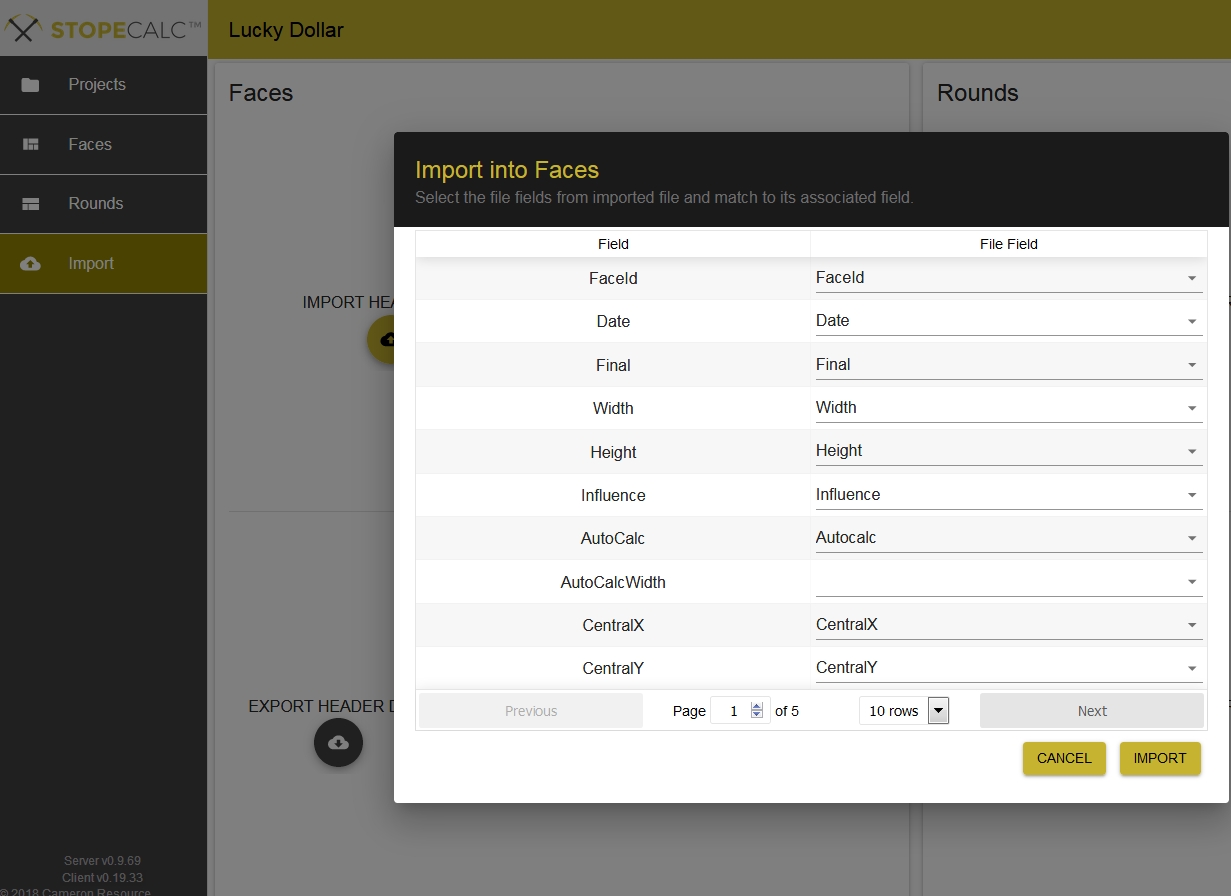
In this case, most of the fields in the import file are an exact match to the database field names. If they are not, clicking on the blank box brings up a field list for the import file:
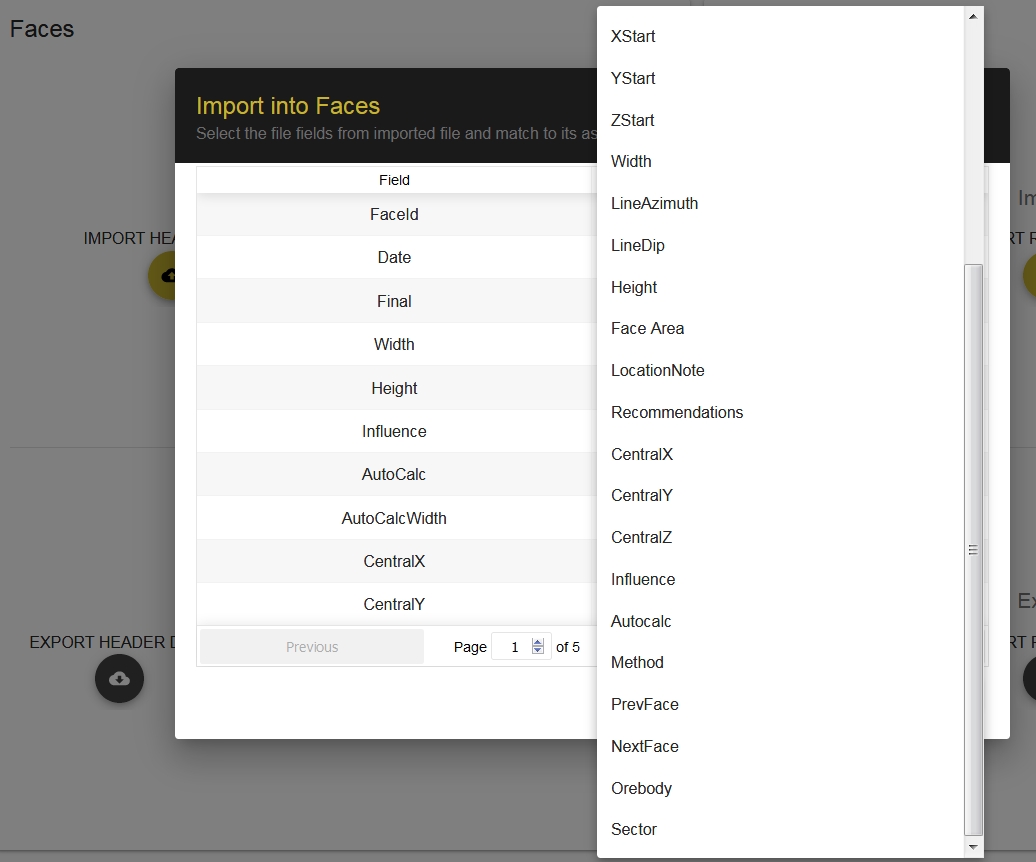
If a field with a different name in the input file corresponds to the database field, the user can select it from the import file field list, otherwise leave it blank. Many of the database fields are not required to create valid faces and can be created by calculations performed later in STOPECALCTM . These include fields related to grade and tonnes, or width and influence (see below).
Unique header and interval records can be imported repeatedly to update existing records. For example, a face may be created and assigned temporary coordinates. A second import may be made, mapping only the new coordinates to the corresponding database fields. Only the coordinates will be overwritten. Similarly, intervals may be imported with geology coding. Subsequently, assays are received and these are imported, updating the existing records with the assay data.
Once the field mapping is completed, clicking the Import button at the bottom of the Import page will begin the import process. A progress bar will indicate the status of the import. If errors are encountered, such as missing required fields, an error message will be generated. In this case, it is recommended to examine the input file to make sure it is error-free and does not contain any extraneous records such as extra header lines or unformatted data at the end of the file.
Release 2.0 includes density as as an importable Interval table field.
NOTE: Import date formats from user-generated csv files must be compatible with STOPECALCTM Regional Preferences! Please be sure to review the discussion on date formatting in that section of this Help documentation.